
Introduction
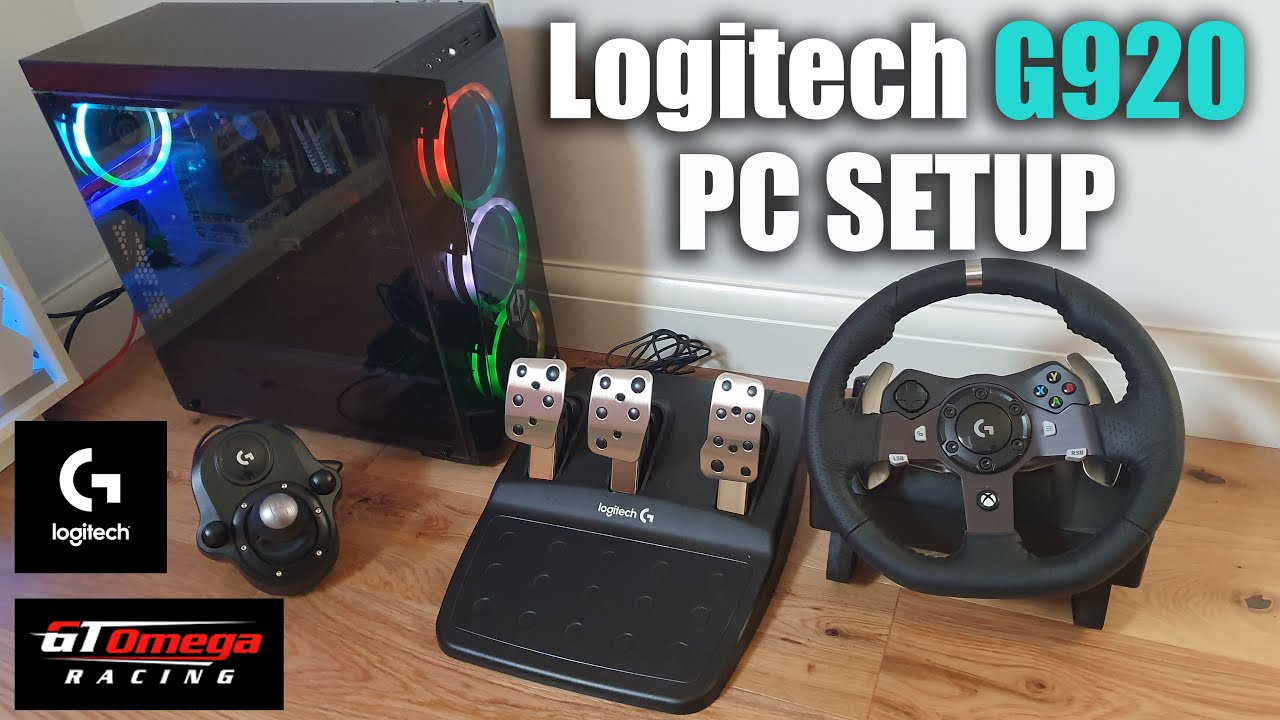
If you’re a racing enthusiast or sim racing fanatic, you know the thrill of hugging the apex and feeling every curve beneath your wheels. The Logitech G920 is already a stellar piece of hardware, but pairing it with the right software can transform your gaming experience from ordinary to extraordinary. That’s where the Logitech G920 software comes in — a powerhouse tool for calibration, customisation, and overall immersion.
From setting up force feedback to customizing pedals, this guide will walk you through everything you need to know. We’ll break down complex features, offer handy tips, and answer common questions. Buckle up, because your virtual race track is about to get a whole lot smoother!
Why the Logitech G920 Software is Essential
Before we hit the gas, let’s understand why the software is more than just a utility.
Seamless Customization
The Logitech G920 software isn’t just about getting your wheel recognised by your PC or console. It allows for deep customisation, including:
- Steering Sensitivity: Adjust the responsiveness to match your driving style.
- Force Feedback Tuning: Feel every bump, turn, and curb as if you’re on the actual track.
- Pedal Calibration: Ensure precise braking and acceleration for better control.
- Profile Management: Save different setups for different games or drivers.
By fine-tuning these settings, you can mimic real-world driving conditions and enhance your competitive edge.
Easy Setup and Compatibility
One of the best things about Logitech G920 software is how straightforward it is. Plug in your wheel, launch the software, and you’re almost ready to race. Plus, it’s compatible with popular racing titles like:
- Forza Motorsport series
- F1 2025
- Assetto Corsa
- Project CARS
And the best part? The software frequently updates to maintain compatibility and introduce new features.
Installing Logitech G920 Software
Don’t worry, it’s easier than you think! Here’s a step-by-step guide.
- Download: Head to the Logitech support website and download the latest G HUB software (Logitech G920 software is integrated here).
- Install: Run the installer and follow the on-screen instructions.
- Connect Your Wheel: Plug your G920 into a USB port. Windows should detect it automatically.
- Launch G HUB: Open the software, and your wheel should appear in the devices list.
- Update Firmware: If prompted, update the wheel firmware for optimal performance.
Once installed, you’re ready to dive into customisation.
Navigating the Logitech G920 Software Interface
The Logitech G920 software interface might seem intimidating at first glance, but it’s designed to be intuitive.
Main Dashboard
Here’s what you’ll find on the main dashboard:
- Device Overview: Check connected devices and firmware versions.
- Profile Selection: Switch between saved profiles for different games.
- Customisation Options: Access steering, pedal, and button settings.
- Diagnostics: Troubleshoot issues and run calibration tests.
Advanced Settings
For those who like to tinker, the advanced settings section is a goldmine:
- Force Feedback Strength: Fine-tune the resistance felt in turns.
- Rotation Range: Adjust the degrees of steering rotation.
- Deadzone Adjustments: Minimise unwanted input around the neutral position.
Optimizing Performance
Even the best wheel can feel off without proper adjustments. Here’s how to get the most out of your Logitech G920 software.
Force Feedback Calibration
Force feedback is key to immersion. Make sure your settings are:
- Strong Enough: Feel the road without straining your arms.
- Balanced: Avoid overcompensation that can throw your car off track.
- Game-Specific: Different titles may require unique adjustments.
Pedal Sensitivity
Calibration ensures that your braking and acceleration are precise. A good trick is to:
- Start with default settings.
- Test in a practice session.
- Adjust sensitivity and deadzones gradually until it feels natural.
Profiles for Every Game
Don’t underestimate the power of multiple profiles. For example:
- Forza Motorsport: Aggressive force feedback and a tighter steering range.
- F1 Series: Softer feedback with rapid response.
- Casual Racing Games: Balanced settings for comfort.
Troubleshooting Common Issues
Even seasoned racers hit a few bumps. Here’s how to tackle common problems.
Wheel Not Detected
- Ensure the USB connection is secure.
- Restart the G HUB software.
- Update drivers and firmware.
Force Feedback Issues
- Check game settings to ensure force feedback is enabled.
- Reset force feedback in the software.
- Recalibrate the wheel if needed.
Pedal Calibration Problems
- Use the software’s calibration tool.
- Reinstall G HUB if issues persist.
- Test pedals in another game to rule out hardware issues.
FAQs about Logitech G920 Software
Q1: Is Logitech G920 software compatible with consoles?
Yes! While PC customisation is more extensive, the G920 works seamlessly with Xbox consoles, and basic settings are accessible.
Q2: Do I need G HUB to use my wheel?
For most modern setups, yes. G HUB provides firmware updates, calibration tools, and customisation options.
Q3: Can I save multiple profiles?
Absolutely! You can create profiles tailored for different games or drivers and switch on the fly.
Q4: How often is the software updated?
Logitech releases updates periodically, often to enhance compatibility, add features, and fix bugs.
Q5: Will using Logitech G920 software improve my racing performance?
Indirectly, yes. Proper calibration and customisation can improve control, response time, and overall driving experience.
Tips and Tricks
- Experiment Gradually: Small tweaks often yield the best results.
- Backup Profiles: Save profiles externally to avoid losing settings after updates.
- Check Community Forums: Other racers often share optimal setups.
- Stay Updated: Regularly check for G HUB and firmware updates.
Conclusion
The Logitech G920 is more than just a steering wheel — it’s a gateway to a realistic racing experience. But without the Logitech G920 software, you’re not even scratching the surface. From force feedback tuning to pedal calibration and profile management, this software is your ticket to mastering every turn and straightaway.
With the guidance in this article, you can confidently install, customise, and optimise your Logitech G920 software to suit your racing style. So plug in, rev up, and let every virtual track feel like the real deal!
