
Introduction
Ever found yourself staring blankly at your Logitech keyboard, locked out of action? Maybe you were mid-email or halfway through a game, and suddenly bam! Nothing works. It’s like your trusty keyboard decided to take an unexpected coffee break without warning. Annoying, right?
Well, you’re not alone. Many Logitech keyboard users face this baffling issue, and it can feel like a total roadblock. But don’t sweat it! This article dives deep into why your Logitech keyboard locked up, what you can do to fix it, and how to avoid future keyboard hiccups. Ready to get typing again? Let’s dive in!
Why Did My Logitech Keyboard Lock Situation Happen?
The Usual Suspects Behind a Locked Keyboard
Before you start throwing your keyboard across the room, let’s figure out what might be causing this annoying lockout. Here are some common culprits:
-
Accidental Key Combinations: Sometimes, hitting the wrong combo of keys can lock your keyboard without you realising it. For instance, the infamous “Windows Key + L” locks your screen, making it seem like the keyboard is locked.
-
Battery Drain or Connection Issues: Wireless Logitech keyboards can lock up or stop responding if their batteries are low or if they lose connection to the receiver.
-
Software Glitches or Driver Problems: Outdated or corrupted drivers can throw a wrench in your keyboard’s smooth operation.
-
Physical Damage or Debris: Dust, crumbs, or spills can sometimes cause certain keys to stick or your keyboard to behave oddly.
-
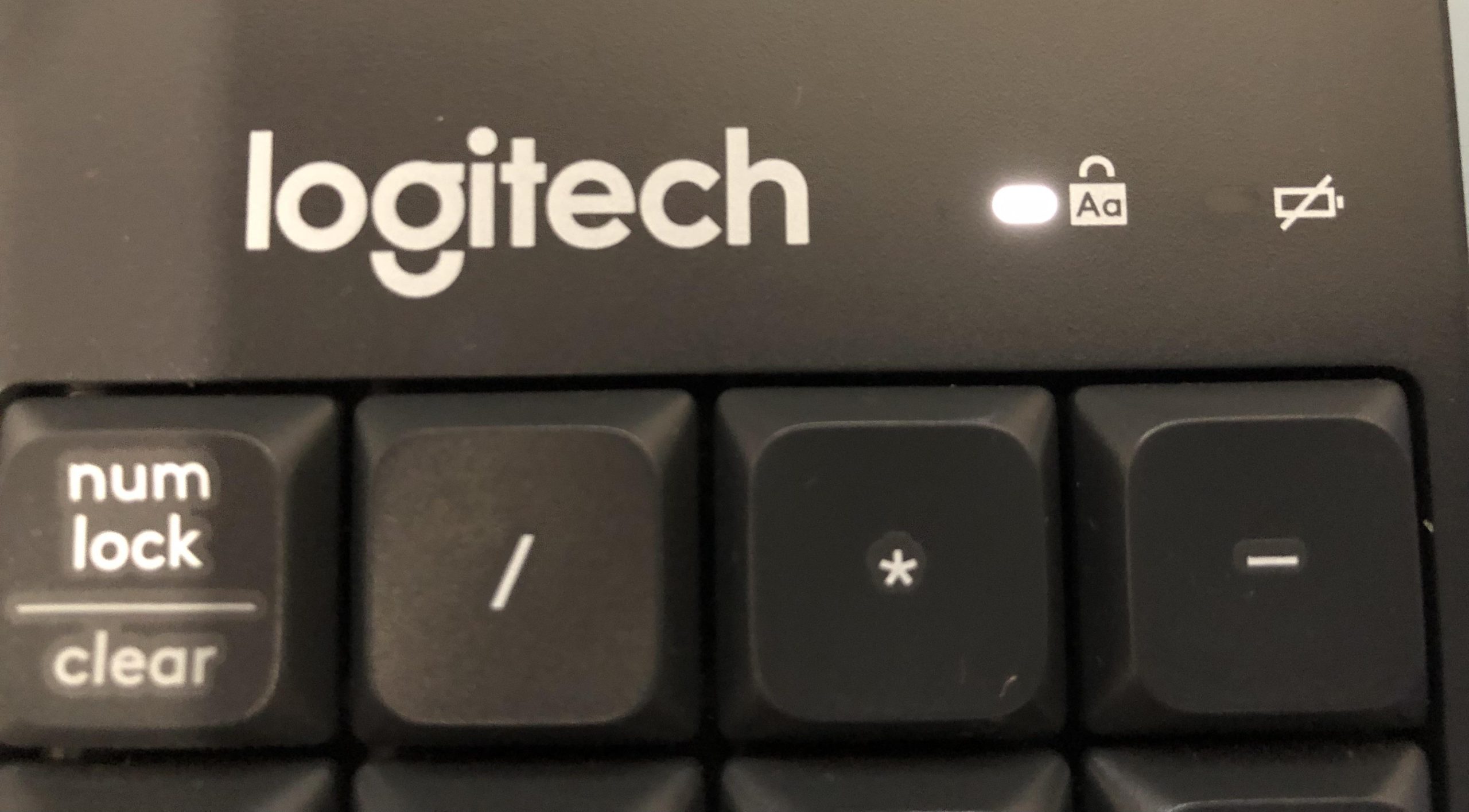
Keyboard Lock Function: Some Logitech models come with a dedicated lock function (like a “Fn” + lock key combo) to prevent accidental key presses, which might get activated unintentionally.
Is Your Logitech Keyboard Locked or Just Unresponsive?
Sometimes it’s tough to tell if the keyboard’s locked or just temporarily frozen. A quick test is to try typing in a different app or restarting your computer to see if the keyboard starts working again. If it doesn’t, chances are your Logitech keyboard locked situation is real and needs a fix.
How to Fix Your Logitech Keyboard Locked Issue
Step 1: Check for Accidental Lock Commands
Believe it or not, many times your keyboard isn’t truly locked, but your computer is! Press Windows + L to unlock your PC if you’re on Windows. If that doesn’t work:
-
Try pressing Fn + F12 or similar keys (check your keyboard’s manual) to toggle lock states.
-
Look for a lock icon on any key and try pressing that with the Fn key.
Step 2: Restart Your Device (Don’t Underestimate This!)
A good ol’ restart can do wonders. It refreshes all the hardware connections and resets temporary glitches that may cause your Logitech keyboard to lock dilemma.
-
Save your work, restart your PC, and see if the keyboard springs back to life.
-
For wireless keyboards, try turning the keyboard off and on again.
Step 3: Check Battery and Connection (Wireless Models Only)
If you’re rocking a wireless Logitech keyboard, battery and connection troubles are a prime suspect.
-
Swap out or recharge your batteries.
-
Reconnect the USB receiver or Bluetooth connection.
-
Try plugging the receiver into a different USB port.
-
Remove any potential wireless interference from other devices.
Step 4: Update or Reinstall Keyboard Drivers
Software is often the sneaky villain here. Outdated or corrupt drivers can cause your Logitech keyboard to experience issues.
-
Open Device Manager on Windows.
-
Find your keyboard under “Keyboards” and right-click to update the driver.
-
If updating doesn’t help, uninstall the device and restart your PC—Windows will reinstall the driver automatically.
Step 5: Clean Your Keyboard
Sometimes it’s the physical stuff, not digital. Dust and grime can gum up keys or sensors.
-
Use compressed air to blow out crumbs.
-
Wipe keys gently with a damp cloth.
-
Avoid liquids directly on the keyboard unless it’s water-resistant.
Step 6: Reset Your Keyboard (Advanced but Effective)
Some Logitech keyboards have a reset function:
-
Check your manual for specific reset instructions.
-
Usually, holding down certain keys for several seconds resets the keyboard.
Common Logitech Keyboard Locked FAQs
Q1: Why does my Logitech keyboard randomly lock?
A1: It could be due to accidental lock key presses, battery issues, software glitches, or hardware faults. Check those one by one!
Q2: Can a Logitech keyboard lock itself without me pressing anything?
A2: While unlikely, firmware bugs or connectivity issues can sometimes make it seem locked. Updating drivers and resetting can usually fix this.
Q3: How do I unlock my Logitech wireless keyboard?
A3: Try toggling lock keys (like Fn + a lock key), check batteries, reconnect the receiver, and restart your device.
Q4: Is it safe to update Logitech keyboard drivers from third-party sites?
A4: No! Always download drivers from the official Logitech website or trusted sources to avoid malware.
Q5: What if my keyboard is physically damaged?
A5: If cleaning and troubleshooting don’t help, you might need professional repair or replacement.
Tips to Avoid Future Logitech Keyboard Locked Problems
-
Keep your keyboard clean: Regular dusting and cleaning prevent sticky keys and sensor issues.
-
Avoid spills: Liquids are a keyboard’s worst enemy.
-
Don’t press random key combos: If you’re unsure about a shortcut, Google it first.
-
Keep software updated: Regular driver updates keep bugs at bay.
-
Use a surge protector: Electrical surges can mess with your USB ports and devices.
-
Store carefully: Avoid tossing your keyboard in bags without protection.
Conclusion: Don’t Let a Locked Logitech Keyboard Issue Slow You Down
There you have it! Your trusty Logitech keyboard locked up might seem like a total disaster, but it’s rarely the end of the world. By following these simple troubleshooting steps, from checking for accidental locks to updating drivers and cleaning your keyboard, you can usually get things back to normal in no time.
Remember, a locked keyboard is usually just your keyboard’s way of asking for a little TLC. So next time your Logitech keyboard locked problem pops up, don’t panic. Instead, take a deep breath, follow this guide, and get back to typing like a pro. And hey, if all else fails, maybe it’s time to treat yourself to a new Logitech companion!
